
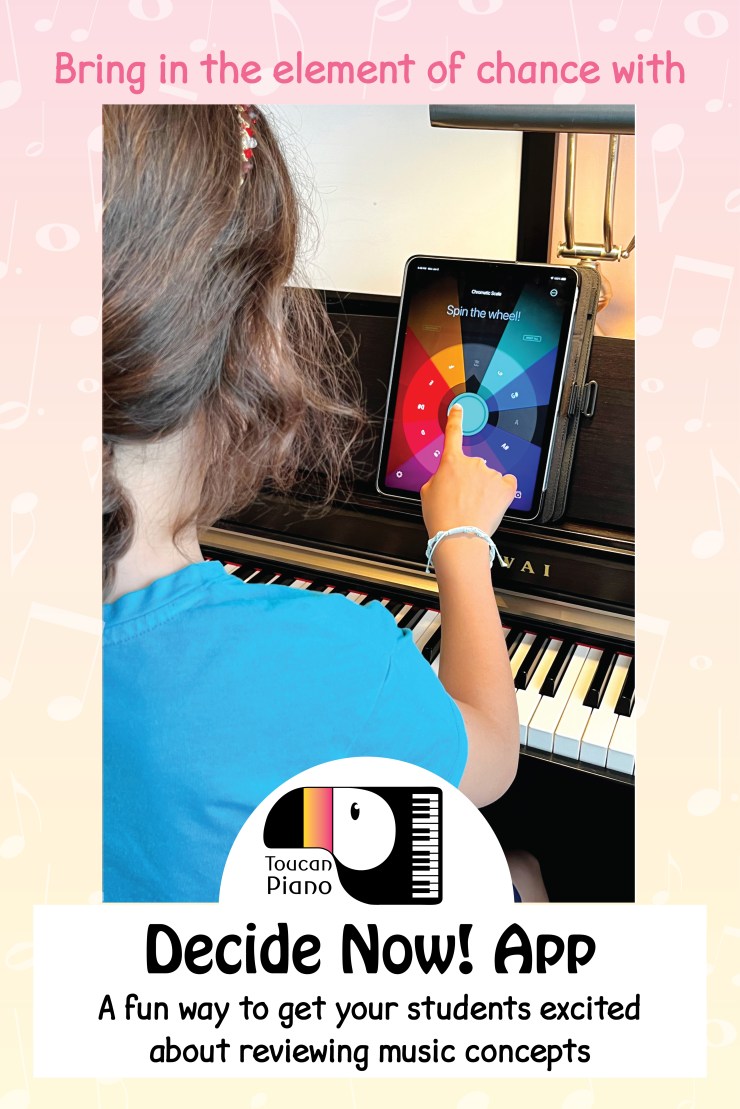
Who doesn’t love the thrill of a little game of chance?! Kids really get into reviewing concepts when a game is involved. Add in the lure of technology and they are sold!
Games of chance often are based around drawing a card, rolling dice, or spinning a wheel. The latter is especially fun… Kids, young and old, have loved playing games like Wheel of Fortune, The Price is Right, and The Game of Life for decades. There is something about watching a wheel of chance slowly come to a stop while hoping it will land on the option you want.
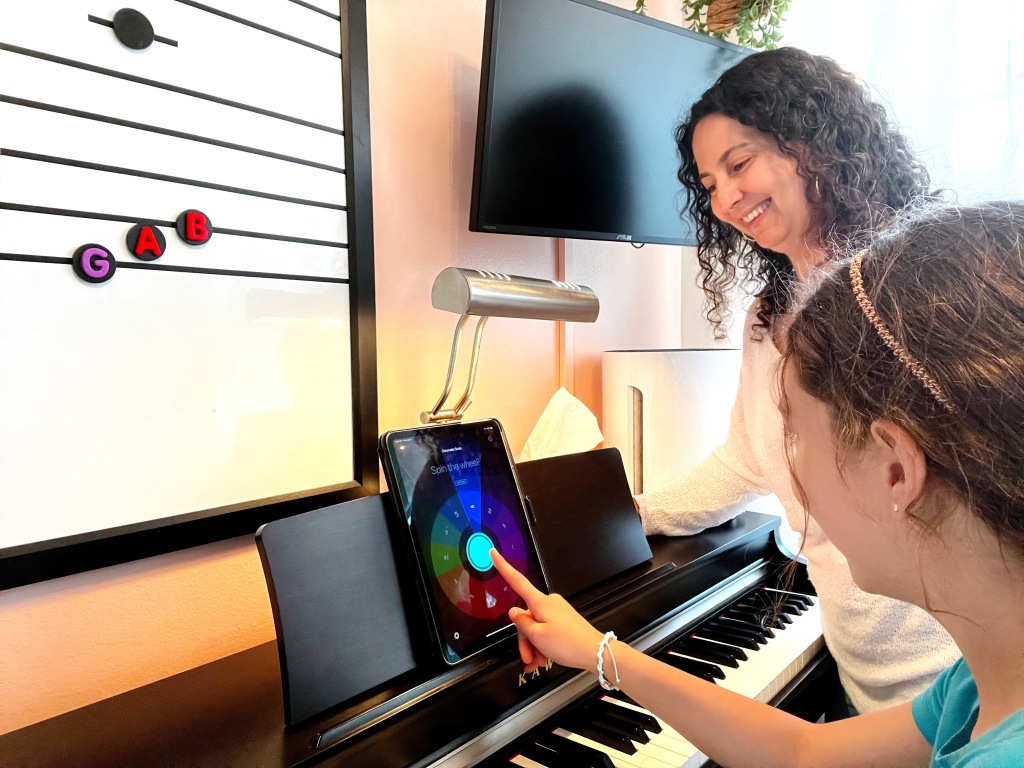
I use the Decide Now! app to bring the fun of a wheel of chance into my piano lessons. It is a fantastic tool for music lessons whether you teach in person or online (I found it enormously useful when I was teaching virtually during the pandemic). I love its versatility, since it allows me to create any wheel I can think of. I’ve used it for a multitude of things in my lessons:
- music theory games (you can create a wheel for any concept you want to drill with your students! From finding keys on the piano, to intervals, chords, roman numerals, keys… the sky is the limit!)
- tempo markings
- transposing music (create a wheel with the names of different keys)
- composing music (choose a form, a key, a rhythmic motive, etc.)
- challenges (play with your eyes closed, sing the melody while playing the left hand accompaniment, etc.)
It can also substitute dice in any game you play with your students. Although I do love using dice for activities (the sensory appeal of dice is very satisfying as well!). But I like to have a variety of options and Decide Now! also allows me to write things that I would not be able to fit on the face of a die.
For a great compilation of ideas on how to incorporate Decide Now! into your lessons, I recommend Leila Viss’ 50 Ways to Use Decide Now!
Examples of Decide Now! Wheels
Here are a few wheels I have come up with to use during my lessons:
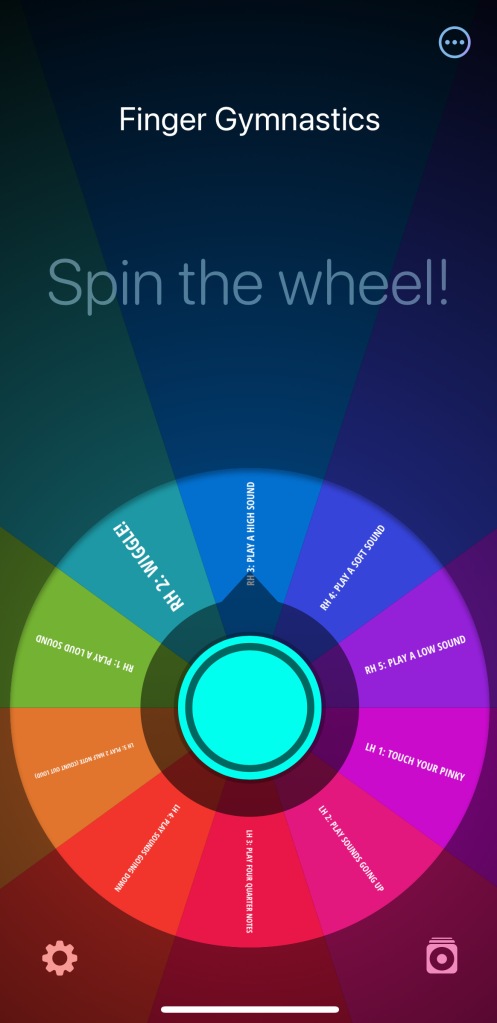
Finger Gymnastics
This is a fun game to help beginner students remember their finger numbers. Each finger has to do something different. My wheel has:
- LH 1: Touch your pinky
- LH 2: Play sound going up the piano
- LH 3: Play four quarter notes
- LH 4: Play sounds going down the piano
- LH 5: Play 2 half notes and count out loud
- RH 1: Play a loud (Forte) sound
- RH 2: Wiggle your finger
- RH 3: Play a high sound
- RH 4: Play a soft (Piano) sound
- RH 5: Play a low sound
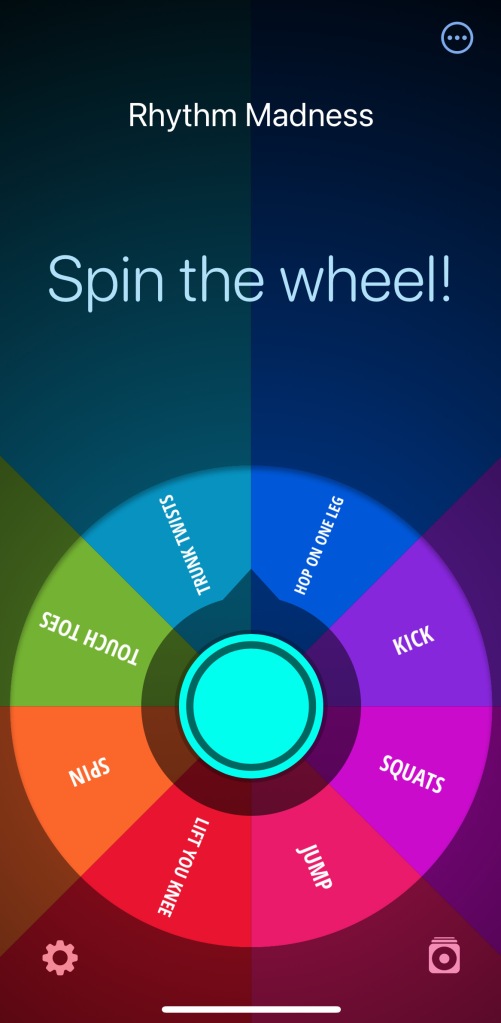
Rhythm Madness
This is a fun game for kids to either play along with the metronome (to feel the steadiness of the beat) or to work on specific rhythm sequences. The student has to do the instruction on the wheel either in synch with the metronome or in rhythm with a pre-determined rhythmic sequence. My wheel has:
- Squats
- Jump
- Lift your knee
- Spin
- Touch your toes
- Trunk twists
- Hop on one leg
- Kick
This game always gets the kids laughing! And sometimes I join in and, let me tell you, it’s a workout!!
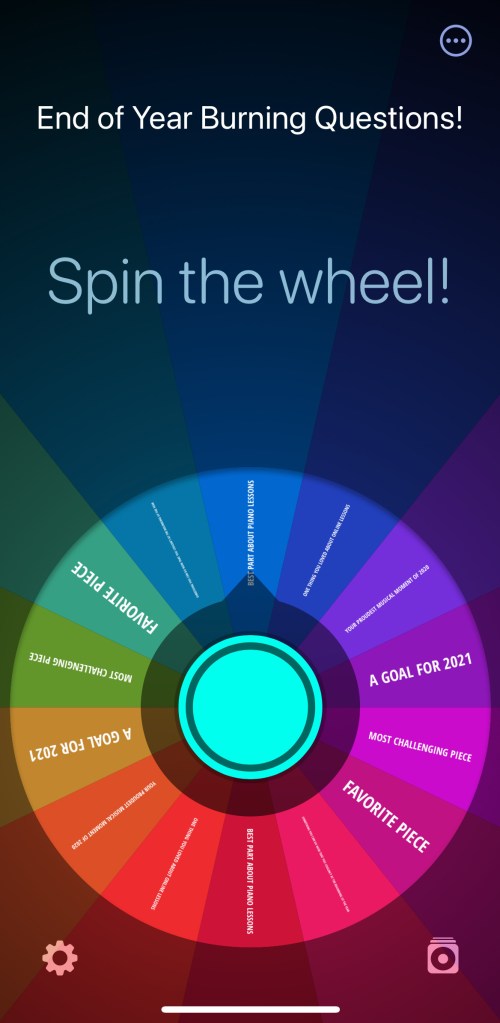
End of Year Burning Questions!
This is a fun little end of lesson game to play as students are heading off to break. I have included in my wheel:
- Most challenging piece
- Favorite piece
- Something you can do now that you couldn’t do at the beginning of the year
- Best part about taking piano lessons
- Once thing you loved about your lessons
- Your proudest musical moment
- A goal for next year
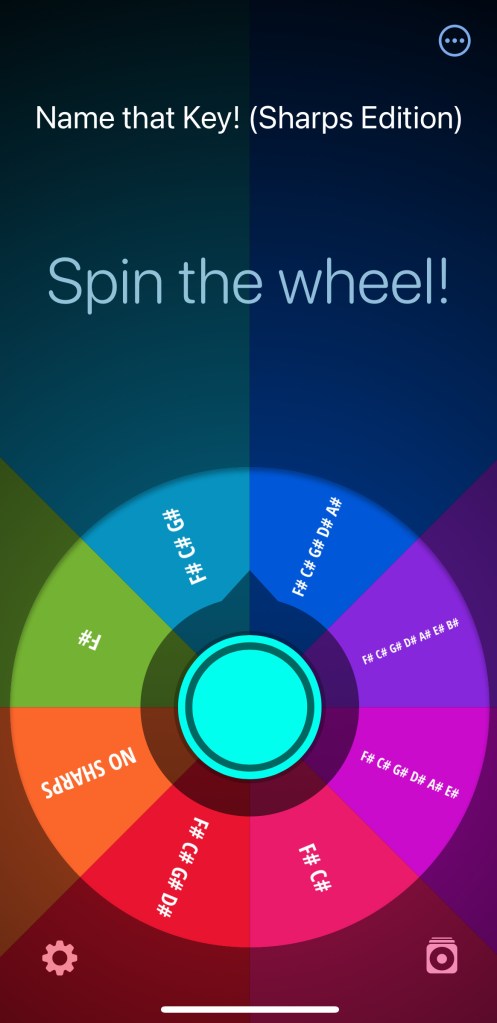
Name that Key! (Sharps Edition)
The student has to name the key (you decide if it’s major or minor before spinning) based on the sharps. The labels for the wheels wedges are:
- No sharps
- F#
- F# C#
- F# C# G#
- F# C# G# D#
- F# C# G# D# A#
- F# C# G# D# A# E#
- F# C# G# D# A# E# B#
How to Set Up Decide Now!
You can download the Decide Now! app from Google Play or the Apple App store for a small fee (I receive nothing from recommending this app, I just really like it).
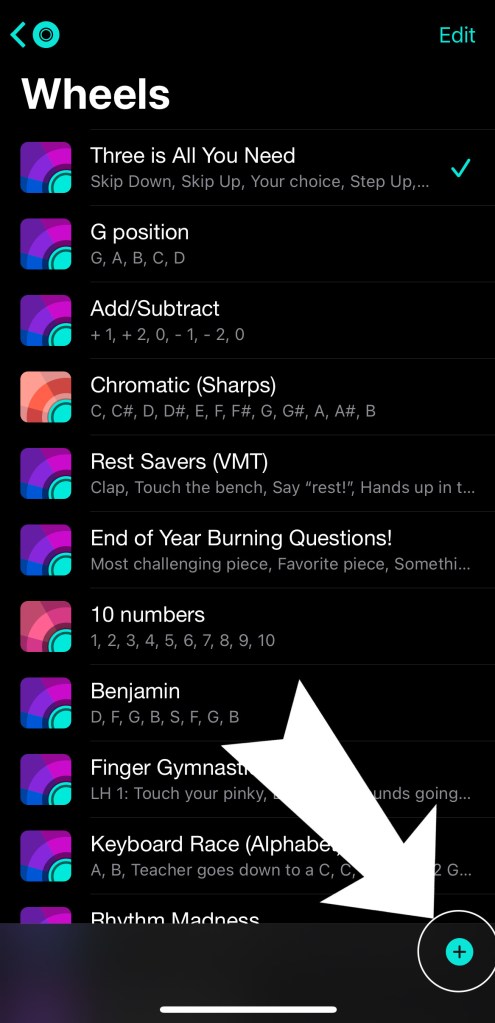
When you open the app, the last wheel that you used will be on the home screen. To create a new wheel or to select a different wheel you have already created, tap on the “File” button in the bottom right-hand corner. A list of all the wheels you have created will appear.
To create a new wheel, tap on the + button at the bottom right-hand corner.

The first thing to do is create a name for your new wheel. Tap on the “Wheel name” rectangle and type in its name. I like to use descriptive names (as opposed to catchy names) to make it easier to find when I need to drill a specific concept. When you are done typing, just tap “Return” on the keyboard.

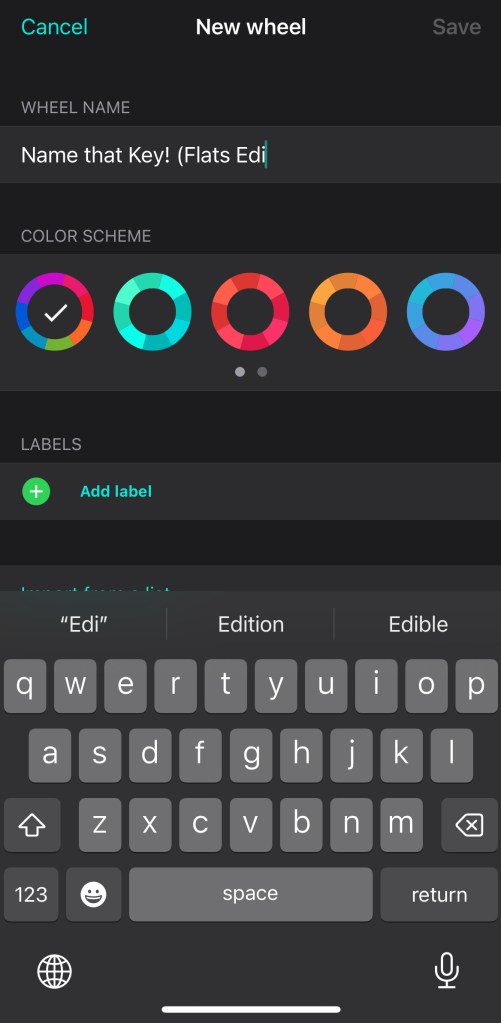
You can then choose the Color Scheme of your wheel. The color scheme determines the colors of the wedges of the wheel. Just tap on the color you’d like to use.
Next it’s time to add the labels for each wedge of the wheel. Tap on the rectangle next to the green “+ Add label” and type in the label for the first wedge.
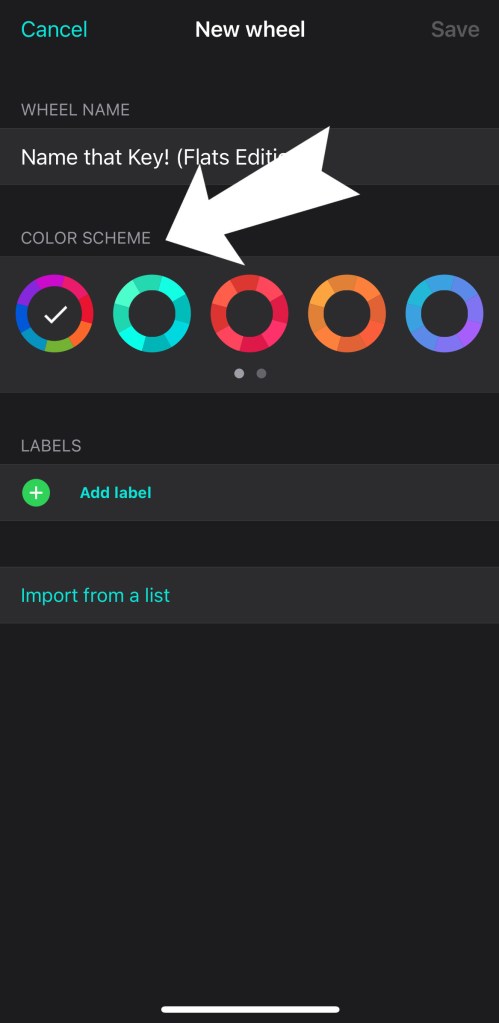
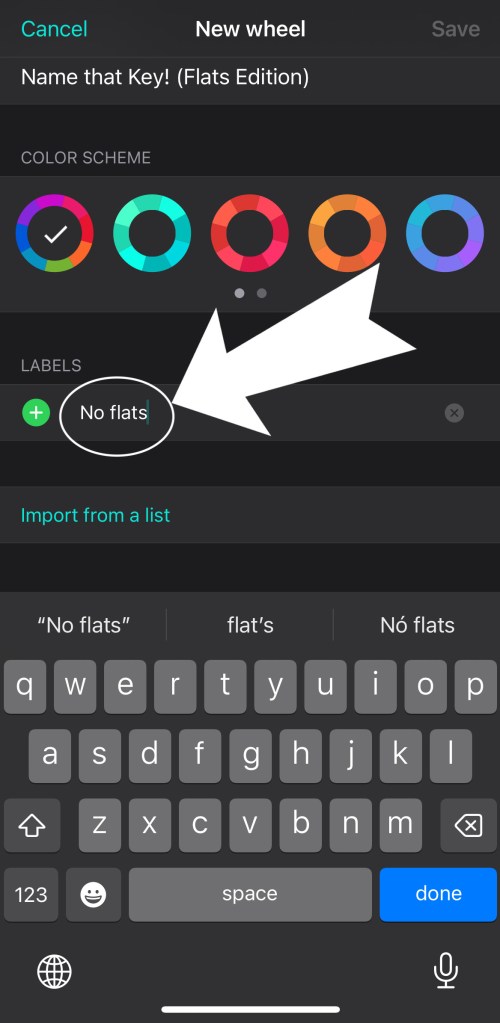
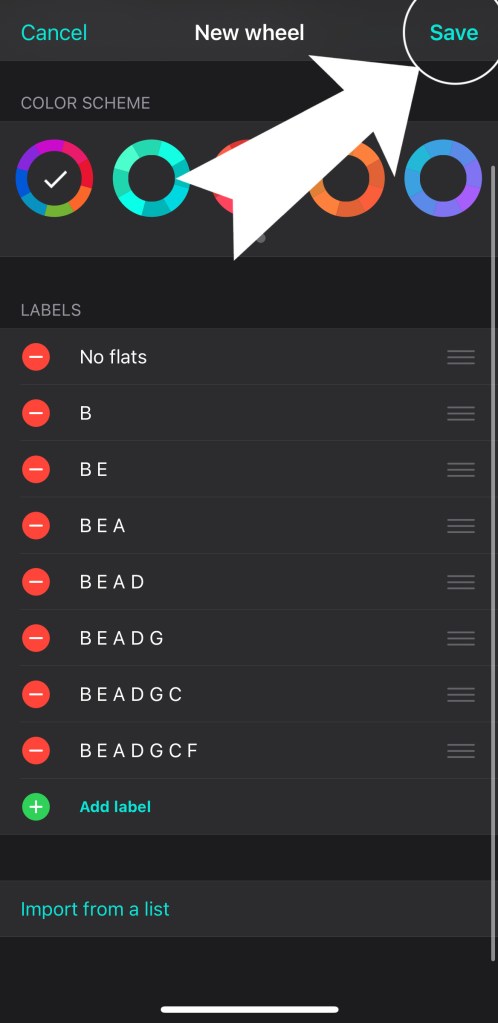
When you are done typing, tap “Return” on the keyboard and another label will appear. Keep adding labels to the wedges until you have all the labels you need.
To edit a label, simply tap on the label and type.
When you are finished creating your wheel, tap “Save” at the top right-hand corner.

Your new wheel now appears at the top of your list of wheels. To select a wheel to play, simply tap on the title of the wheel. The wheel will open and it’s ready to play.


If you would like to change the order in which the wedges appear on the wheel, tap the three dots in the top right-hand corner and select “Randomize”.
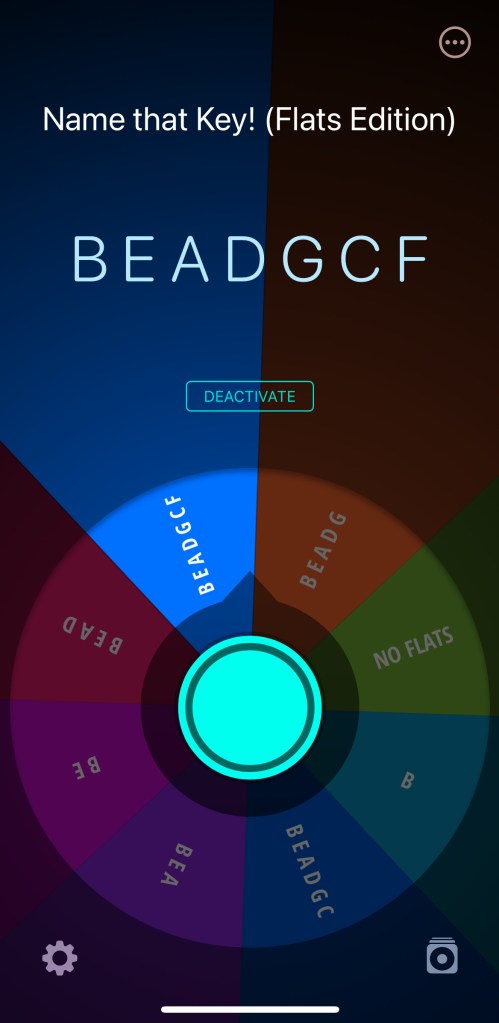
To spin the wheel, tap on the circle at the center of the wheel.
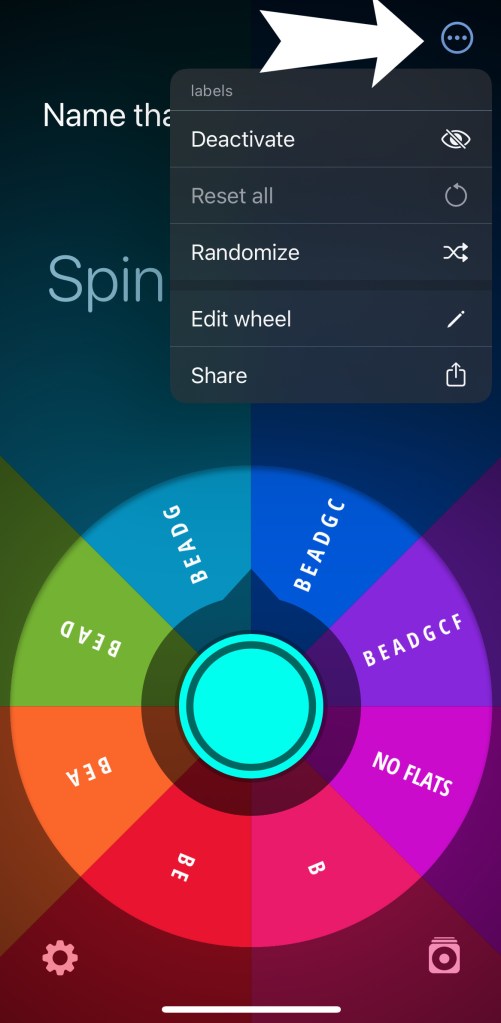

When the wheel stops spinning, the selected wedge of the wheel will light up and the text inside the wedge will appear below the title of the wheel (in this case, “B E A D G C F”). Note that a “Deactivate” button also appeared. You can deactivate the wedge by tapping on the Deactivate button. When a wedge is deactivated, the wheel will not land on that wedge. This can be useful if a student has already mastered that particular concept and you want to focus on the others or if you are having a student complete tasks one-by-one.
To reactivate a wedge(s), just tap on the “Reset All” button that appears when a wedge(s) is deactivated.

Let the games begin!!!

- How to Make your Own Music Theory Dice
Music theory dice are a great tool to have in your piano teacher arsenal but most of the time what you need isn’t available to buy anywhere. DIY Music Theory Dice are so easy to make and they are completely customizable for any concept you would like to work on with your students. - Pot of Gold Rhythm Game
Put those music theory dice to good use with this easy rhythm game for your beginner/elementary students. The value of each rhythm note or rest will determine how many coins go into the pot. Who can fill their pot the fastest?! This game can be adapted for any time of the year or use mini-cauldrons for a fun Halloween or St. Patrick’s Day game. - The Die of Destiny
Sometimes a student will walk into my studio without their usual bounce in their step. I’ve found that a little silliness and a dash of chance gets them in the mood to pull out their piano books and play music. The Die of Destiny is a fun and quick lesson starter to get students playing.

Let’s stay in touch, join the list!
As a “toucan” of our appreciation download a free set of note flashcards (link in our Welcome email)!
We are a participant in the Amazon Services LLC Associates Program, an affiliate advertising program designed to provide a means for sites to earn advertising fees by advertising and linking to Amazon.com. As an Amazon Associate we earn from qualifying purchases.

 Toucan Piano
[…] you can simply call out the chords you would to drill or use an app like Decide Now! (Check out my blogpost on how to use the Decide Now! […]
LikeLike