
Creating a ringtone can be a fun and quick composition project for students! Since a ringtone is short (40 seconds) and, therefore, the composition needs to be short, it is a great little project even for students who are reluctant to compose or for very young kids. And as an added bonus, it can be made with someone specific in mind… for example, for mom as a gift for Mother’s Day so she can use it on her phone as her timer ringtone (I have my own personalized timer ringtone that my daughter composed and I love it!) or as a birthday gift for grandpa. It is a really special way for students to use their musical knowledge and creativity to brighten the lives of the people they love.
Although are were a lot of pictures in this step-by-step walk-through, it is a very simple process. Every time I record my students (we make a recital Cd every year as well as a composition Cd when we have a studio-wide composing project), I teach them how to do basic editing with GarageBand and how to navigate it. As far as music production softwares go, it is very easy to use and a great starting point for kids (and us teachers who don’t want adventure into the music production world – me included!).
If the kids want to explore GarageBand beyond just playing their composition:
- they can create their own beat to play under their composition (a great exercise for working with rhythms!)
- create lyrics for their composition and then record themselves singing (for all our budding singer-songwriters!)
- if they play another instrument, they can accompany themselves (a great way to have them start thinking about harmonizing with other instruments and creating layers to a piece of music)
the sky is really the limit for their creativity on this project! And the beauty of it is that since it is a short composition (a maximum of 40 seconds), they can try out many different things!
I am going to explain my process for an iPhone/iPad (I don’t have an Android…) and digital piano (you could also record your students playing an acoustic piano by setting up a microphone connected to your device).
After your student has composed their ringtone composition, it’s time to record! Open up GarageBand on your iPhone or iPad and click on the + symbol in the top right corner:

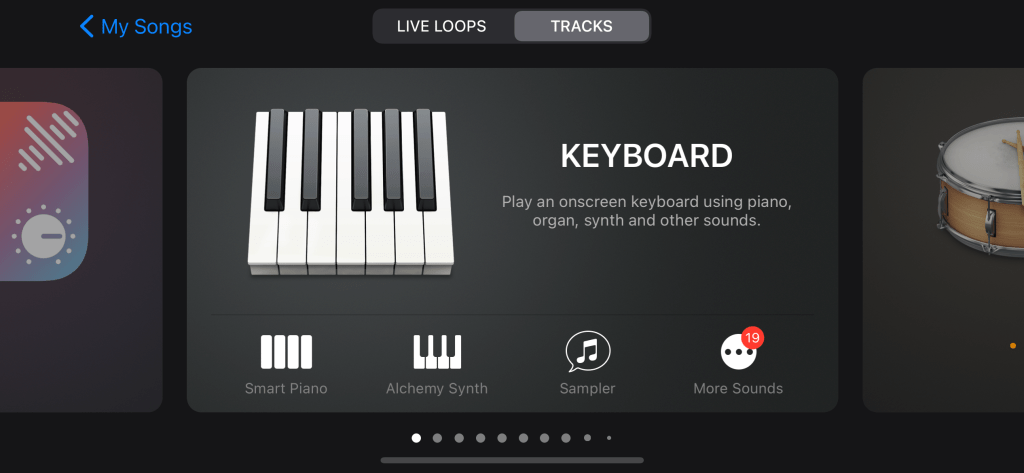
Select “Keyboard” (for a digital piano set up) or “Audio Recorder” (for an acoustic piano and microphone set up):
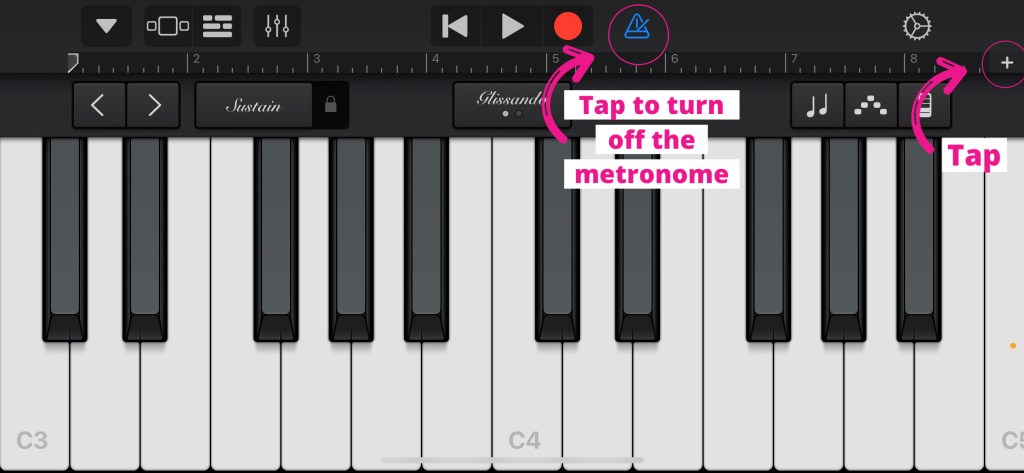
If you do not want the metronome ticking while your student records, tap the metronome symbol to turn it off.
Tap on the + symbol in the upper right hand corner:
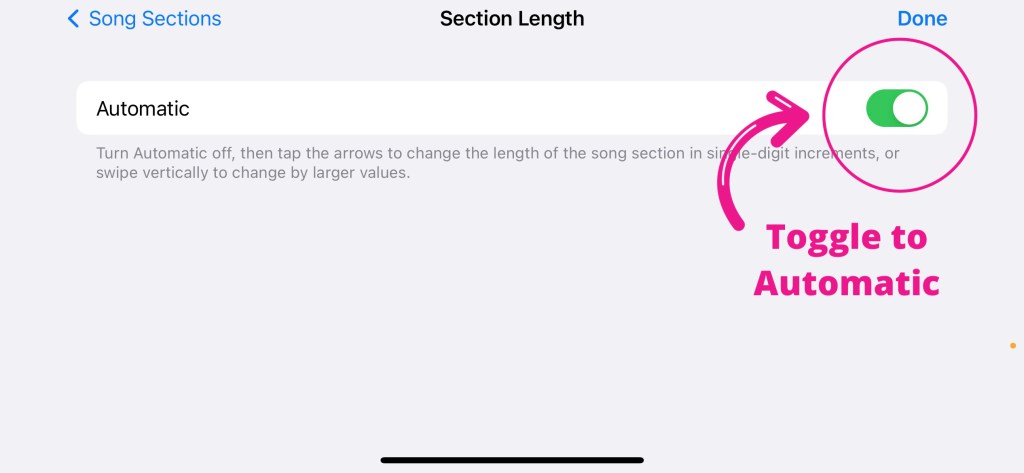
GarageBand automatically limits the number of measures to 8. To record to the end of a piece without worrying about getting cut off after 8 measures, tap on the arrow next to the text “8 bars”:
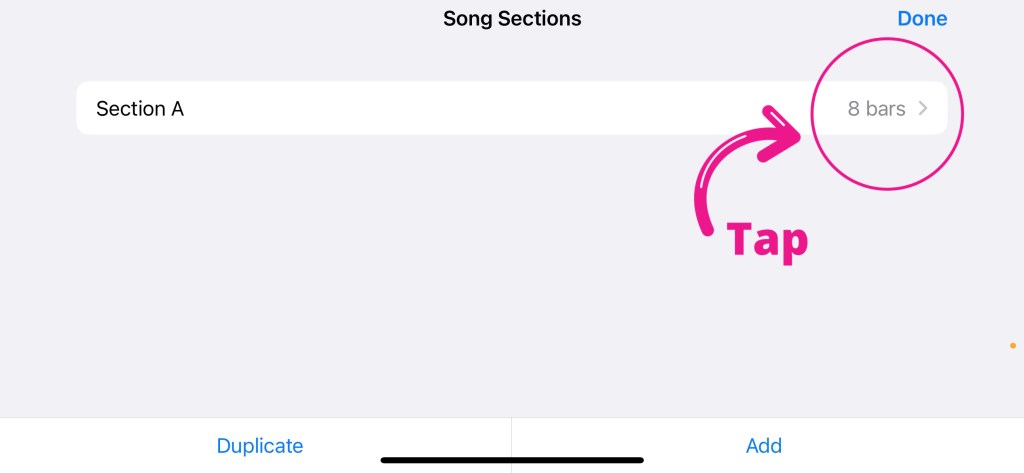
Then toggle the slider to green. GarageBand will now continue to record until you tell it to stop. Tap on “Done” (top right corner) to return to the keyboard screen.
Connect your digital piano (or microphone) to the iPhone/iPad:

Press the record button and have your student play his/her composition:
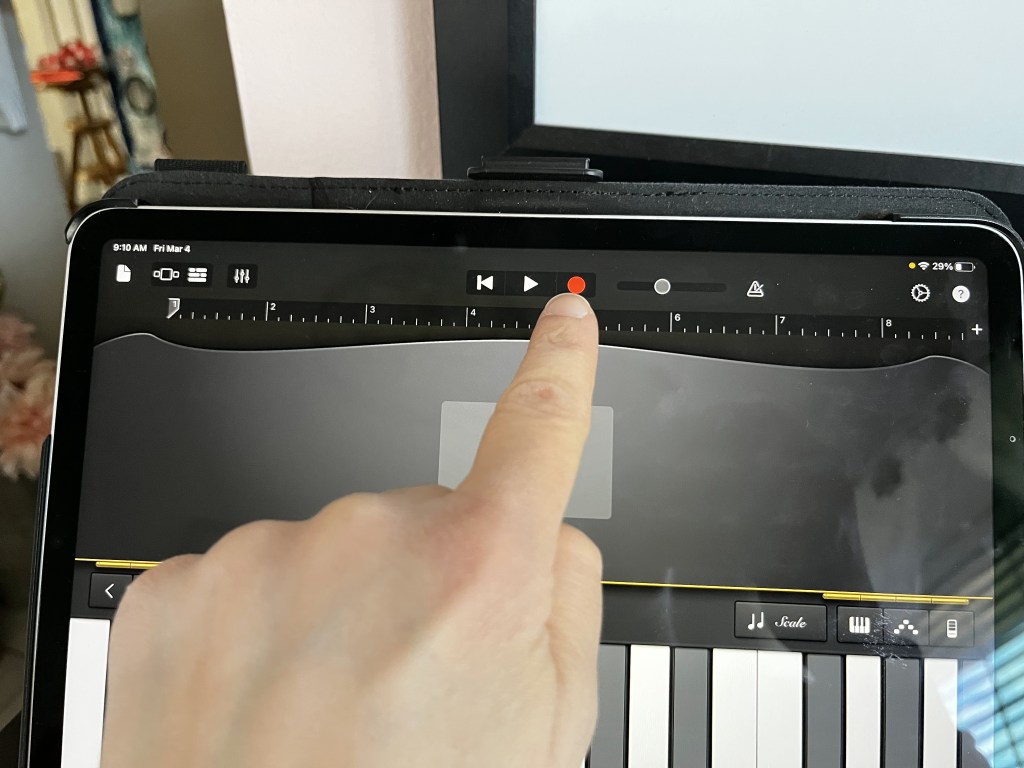
Tap the square icon to the left of the record icon to stop recording when your student is done playing:

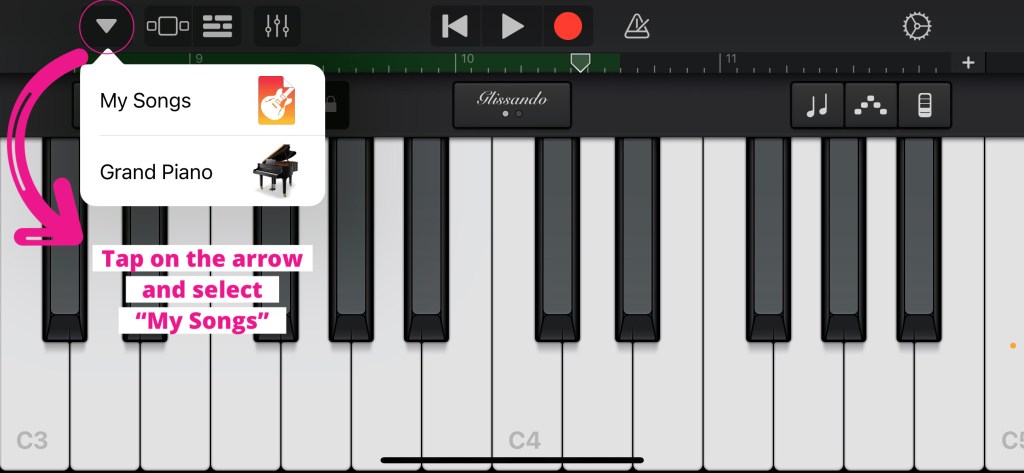
If there is no editing to be done, tap on the arrow in the top left corner and select “My Songs” to save and return to the main page:
Your student’s composition will be automatically named “My Song #”.
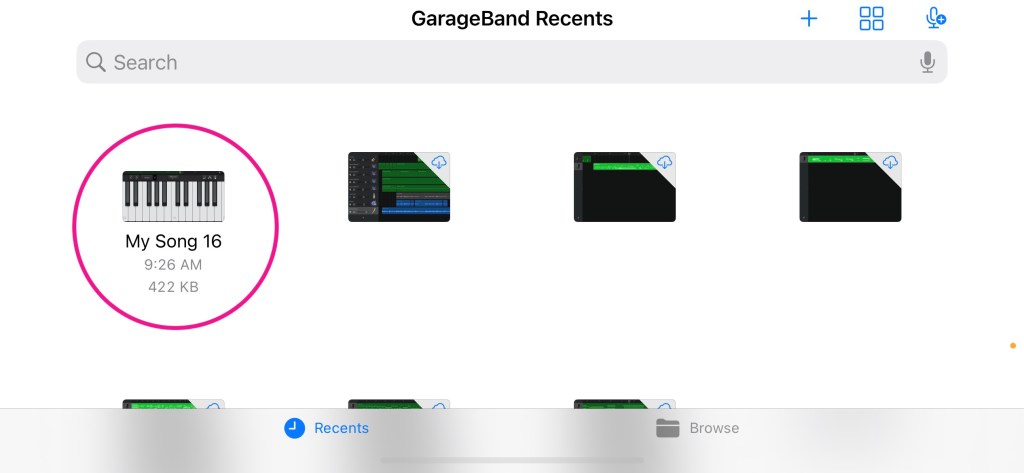
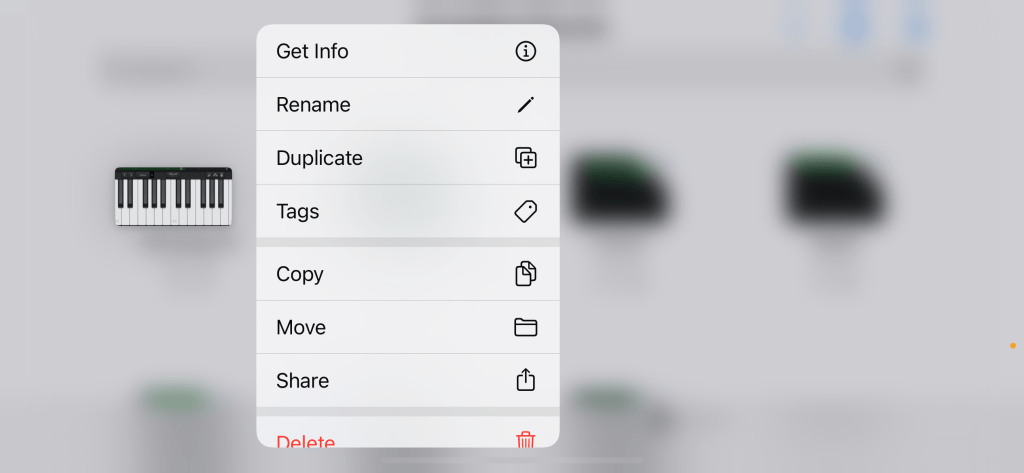
You can rename it by pressing and holding the keyboard and selecting “Rename”. Type in the name of the composition.
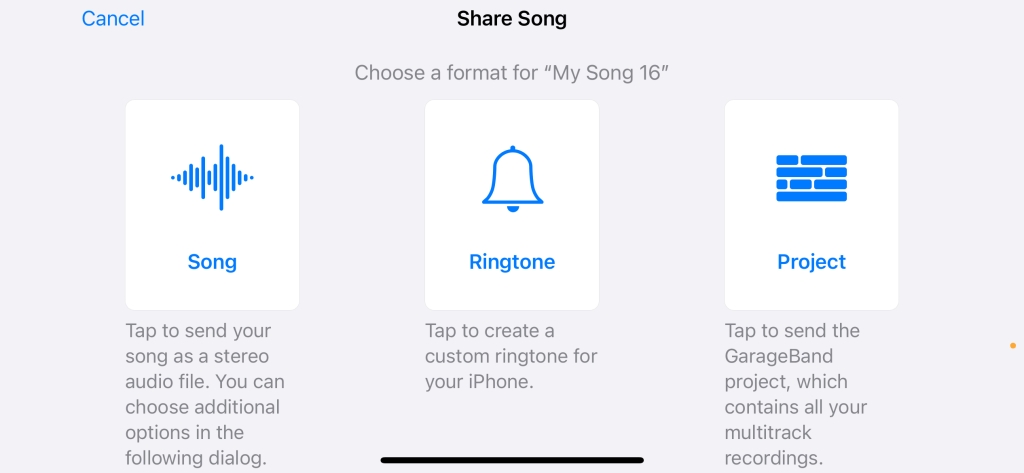
The easiest way to create a ringtone without having to install any apps or connect the iPhone/iPad to iTunes is to share the composition as a “Project” and send it to the recipient. They will then open it in GarageBand (which is free and comes with all iPhones/iPads) to create the ringtone.
Another option for sharing the would be to share it as an “Song” and send it as a .wav file. If the recipient has an Android they can use that .wav file directly and set it as a ringtone. However, if the recipient has an iPhone they will have to convert the .wav file to a .m4r file.
I’m going to explain how to share the composition as a “Project” and what the recipient needs to do once they receive it. To share with a parent/guardian/relative/friend, press and hold the keyboard icon above the name of the composition and select “Share”:

Select “Project”:
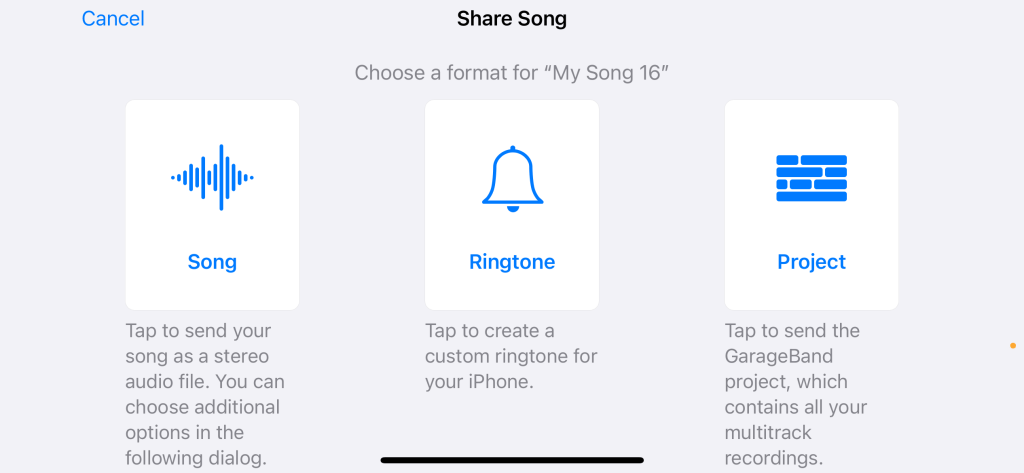
A menu will pop up asking you how you would like to share the file. Choose whichever option best suits your needs (Google Drive, e-mail, text message, etc.) and send it the student’s parent/guardian/etc.:

When your student’s parent/guardian/etc. receives the file, they can open it in Garageband. It will appear in GarageBand’s main menu.
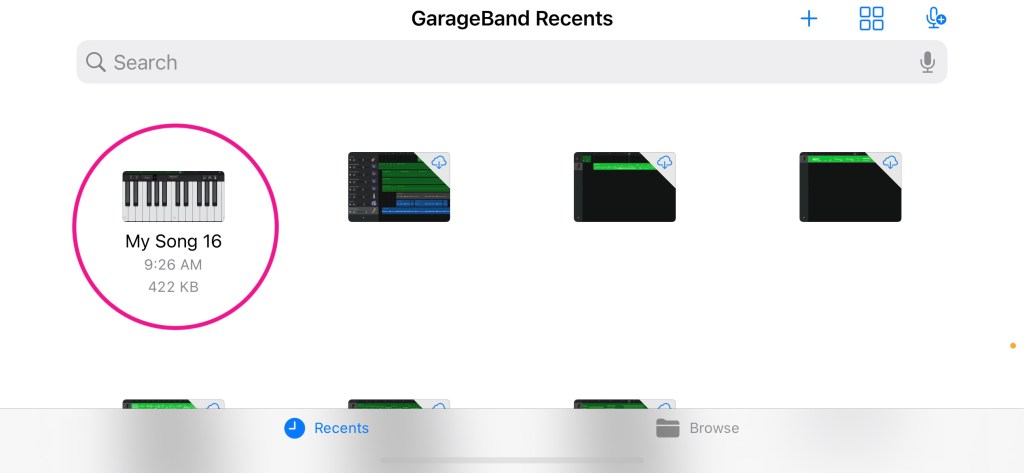
They will press and hold the keyboard icon above the name of the composition and select “Share”:
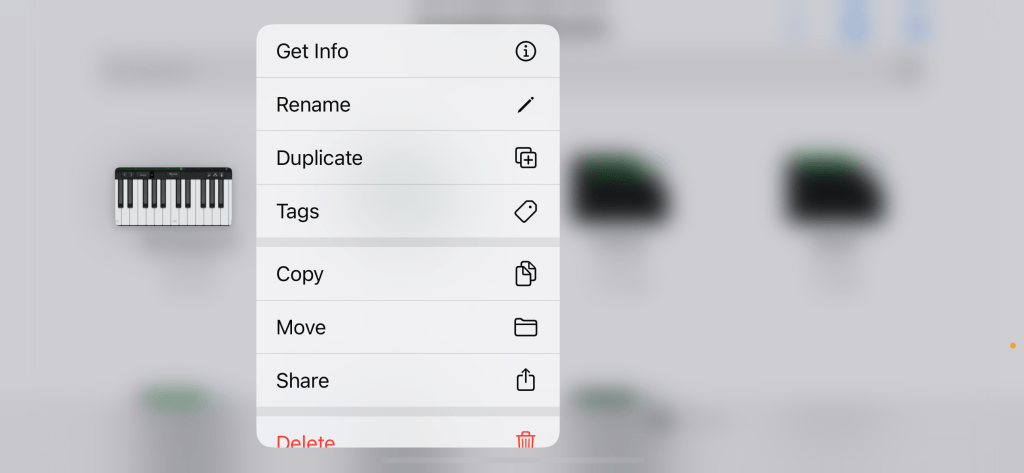
They will then select “Ringtone” in the menu that appears:
They will then choose how they would like to set their ringtone:

The ringtone will now appear as an option with all their other ringtones!
I hope your students have fun with this little composition project!

Let’s stay in touch, join the list!
As a “toucan” of our appreciation download a free set of note flashcards (link in our Welcome email)!

 Toucan Piano
[…] Compose a RingtoneRingtones are helpful but what if we could make them special too?! This is a fun and quick project that even the most reluctant students can get behind. […]
LikeLike
[…] Compose a RingtoneRingtones are helpful but what if we could make them special too?! This is a fun and quick project that even the most reluctant students can get behind. […]
LikeLike
[…] Compose a RingtoneRingtones are helpful but what if we could make them special too?! This is a fun and quick project that even the most reluctant students can get behind. […]
LikeLike
[…] directly to a smartphone or tablet and record yourself using apps such as GarageBand (check out my blogpost on how to set up GarageBand for recording from your digital piano). You may need adapters to connect your device to your piano, […]
LikeLike
[…] Compose a RingtoneRingtones are helpful but what if we could make them special too?! This is a fun and quick composition project that even the most reluctant students can get behind. […]
LikeLike
[…] Compose a RingtoneRingtones are helpful but what if we could make them special too?! This is a fun and quick project that even the most reluctant students can get behind. […]
LikeLike
[…] Compose a RingtoneRingtones are helpful but what if we could make them special too?! This is a fun and quick project that even the most reluctant students can get behind. Plus it makes a sweet Mother’s or Father’s Day gift! […]
LikeLike
[…] Compose a RingtoneRingtones are helpful but what if we could make them special too?! This is a fun and quick project that even the most reluctant students can get behind. […]
LikeLike
[…] Compose a RingtoneRingtones are helpful but what if we could make them special too?! This is a fun and quick project that even the most reluctant students can get behind. […]
LikeLike